To fix text typed with Caps Lock on, copy the affected passage into a case converter and choose the conversion that matches the mistake. Use lowercase for uniformly capitalised text, Sentence Case for ordinary sentences, or Invert Case when uppercase and lowercase letters have been reversed. Then review names, acronyms and punctuation before replacing the original.
You usually do not need to retype an entire paragraph. The important step is identifying which pattern you have. A passage written entirely in capitals needs a different correction from a passage where sentence beginnings are lowercase and most other letters are uppercase.
This guide walks through both situations using Quick Tool Desk’s actual conversion options. The examples are original sample text with outputs calculated from the current conversion rules.
Identify the Pattern Before Choosing a Button
An accidental Caps Lock mistake can produce several kinds of text. Look at a short section before converting the whole draft.
| What the text looks like | Example | Useful starting option |
|---|---|---|
| Every letter is uppercase | PLEASE CHECK THE UPDATED DRAFT. | Sentence Case for ordinary prose |
| You need every letter lowercase | DRAFT NOTES FOR REVIEW | lowercase |
| Uppercase and lowercase appear reversed | pLEASE CHECK THE UPDATED DRAFT. | Invert Case |
| Only one section has accidental capitals | Please check THE UPDATED DRAFT before lunch. | Correct that section separately |
| Names and acronyms have mixed problems | PLEASE EMAIL MAYA THE PDF. | Sentence Case, followed by manual review |
These are starting points rather than guarantees of a fully edited result. A converter changes letter case according to its rules; it does not know which words are people’s names or which abbreviations your organisation uses.
First switch Caps Lock off so the mistake does not continue while you work. Then decide whether the entire passage or only a small section needs correction.
Keep the Original Before Converting
Copy the affected text into a separate working area. Keep the original document or message available until you have reviewed the result.
Quick Tool Desk’s conversion buttons change the text in the input box. If you click lowercase and then Sentence Case, the second action works on the already converted text. It does not recover the original capitalisation.
This matters when a draft contains information you want to preserve. A name such as “Maya,” an acronym such as “PDF,” or a product name with unusual capitalisation can lose its intended form during a broad conversion.
Keeping the original gives you something to compare against. It also prevents an accidental replacement from becoming your only copy of the passage.
Work on a separate copy of the email, keeping the draft available so you can compare the result before replacing it. For a longer document, save a duplicate or use the document’s normal revision controls before replacing paragraphs.
Correct an All-Caps Paragraph with Sentence Case
Sentence Case is a practical starting point when normal prose has become entirely uppercase.
Consider this fictional message:
Original: PLEASE CHECK THE REVISED DRAFT. SEND YOUR COMMENTS BEFORE LUNCH.
Using Quick Tool Desk’s Sentence Case rule produces:
Calculated output: Please check the revised draft. Send your comments before lunch.
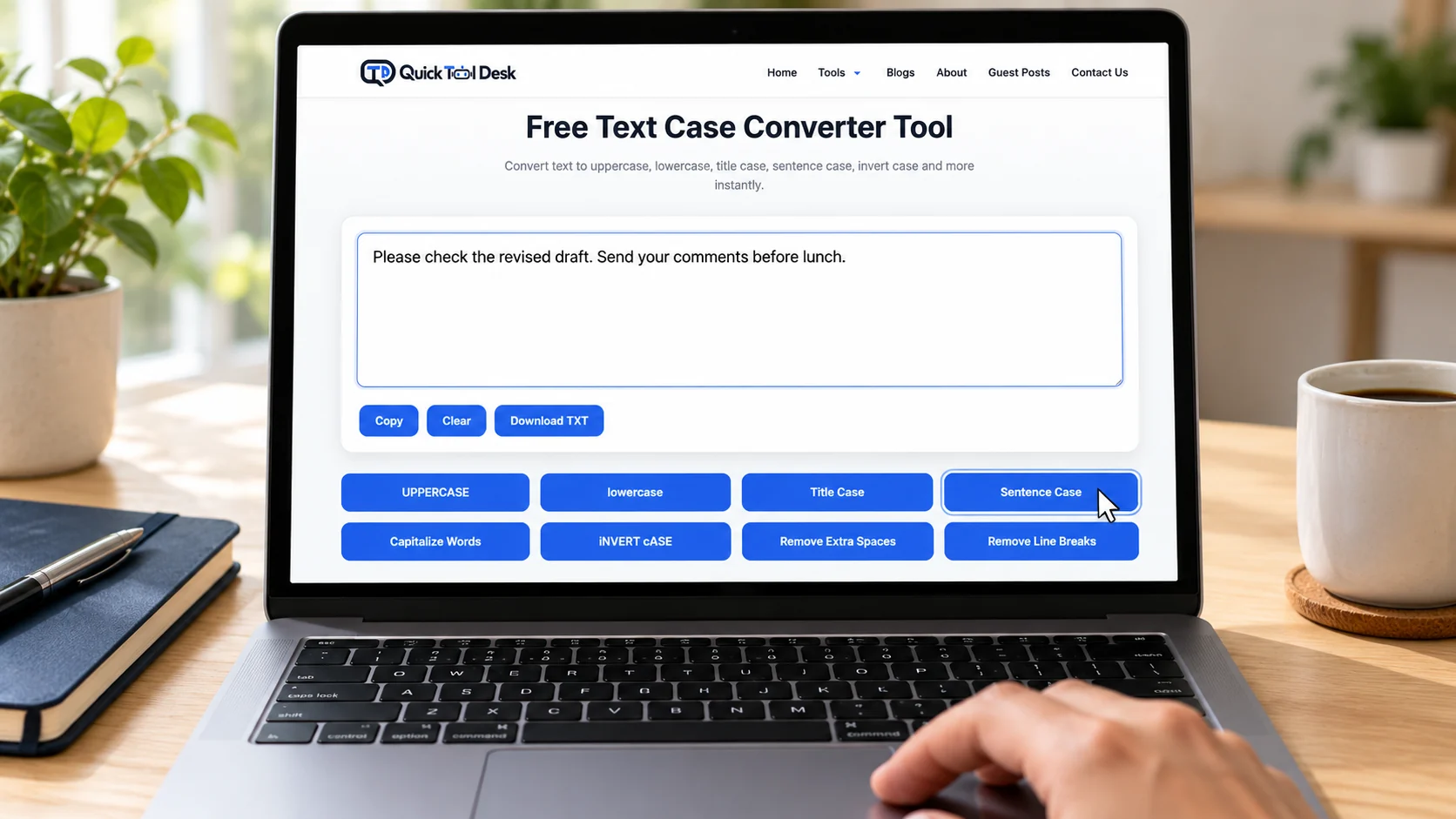
The current converter lowercases the text, then capitalises the beginning and letters following recognised sentence-ending punctuation with intervening whitespace.
That gives you a useful first pass for straightforward sentences. It does not provide a complete grammar or language review.
For example, applying Sentence Case to this input:
Original: PLEASE ASK MAYA TO CHECK THE PDF.
produces:
Calculated output: Please ask maya to check the pdf.
The final edited version should be:
After manual review: Please ask Maya to check the PDF.
The conversion fixes the overall all-caps pattern. You still restore the person’s name and the acronym manually.
Use the case converter for correcting accidental capitals to make that first pass, then compare the result with the original wording.
When Sentence Boundaries Need Extra Attention
Do not assume every new line will become a new sentence. A line break can separate a heading, list item or address without including sentence-ending punctuation.
Abbreviations can also complicate the result. A period inside an abbreviation may resemble a sentence boundary to a simple rule.
After conversion, check:
- The first word of each sentence.
- Names appearing inside a sentence.
- List items and short headings.
- Abbreviations containing periods.
- The pronoun “I” when it appears within a sentence.
These checks are particularly useful for emails, short instructions and copied notes.
Use Invert Case for Reversed Capitalisation
Invert Case flips each letter’s current case: “A” becomes “a”, while “b” becomes “B”.
It is useful when your passage looks like this:
Original: pLEASE SEND THE REVISED DRAFT.
The calculated result is:
Calculated output: Please send the revised draft.
This pattern can occur when Caps Lock was on and you also used Shift at the beginning of a sentence. Invert Case reverses the visible letter-case pattern instead of forcing the whole passage into one style.
A second fictional example demonstrates why that distinction matters:
Original: pLEASE ASK mAYA TO CHECK THE pdf.
Invert Case produces:
Calculated output: Please ask Maya to check the PDF.
Here, the original intended capitalisation was consistently reversed. The operation can therefore restore it without a separate name correction.
However, that result depends on the input. If some words were already correctly capitalised, Invert Case will reverse those too.
For example:
Original: pLEASE ASK Maya TO CHECK THE PDF.
becomes:
Calculated output: Please ask mAYA to check the pdf.
You would still need to repair “Maya” and “PDF.” Invert Case is appropriate for a consistent reversal, rather than every passage containing mixed capitals.
Use Lowercase When That Is the Intended Output
The lowercase option converts letters to their lowercase forms. It is useful when you deliberately need a lowercase phrase or want a simple starting point for manual editing.
For example:
Original: WEEKEND RESEARCH NOTES
becomes:
Calculated output: weekend research notes
That may be suitable for a personal label or a draft phrase. It is not automatically the correct final form for a sentence, a person’s name or a formal heading.
If your goal is ordinary prose, Sentence Case usually saves you another editing step. If your goal is to remove inconsistent capitals before rewriting a short passage, lowercase can be useful.
Avoid converting an entire document merely because one paragraph contains an error. Select the smallest meaningful section that needs correction.
A Worked Example: Repairing an Email Without Retyping
Imagine that you have prepared this fictional email:
HI MAYA,
PLEASE REVIEW THE PROJECT SUMMARY. I HAVE ATTACHED THE PDF.
THANK YOU,
ARUN
The wording is usable, but the accidental capitals make the message harder to scan. Here is a practical correction workflow.
1. Preserve the Message
Copy the email into the converter while keeping the original open. Include the greeting, body and sign-off so you can review them together.
2. Apply Sentence Case
The converter produces this first pass:
Hi maya,
please review the project summary. I have attached the pdf.
thank you,
arun
Notice what remains to fix. The new lines after the greeting and body are not automatically treated as sentence starts. The names and acronym have also been lowercased.
3. Restore the Intended Capitalisation
Make the small manual corrections:
Hi Maya,
Please review the project summary. I have attached the PDF.
Thank you,
Arun
You have corrected a full message without retyping its wording. The remaining edits are targeted checks rather than another complete draft.
4. Copy Back and Review the Destination
Use Copy to transfer the corrected text into the email. Confirm that the greeting, paragraphs and sign-off remain separated as intended.
Read it once in the destination before sending. A correct converter result does not guarantee that the receiving editor will preserve every formatting choice.
Why Title Case Is Usually the Wrong Fix for a Paragraph
Quick Tool Desk also offers Title Case and Capitalize Words options. Those controls serve different purposes from repairing normal prose.
Applying Title Case to an all-caps paragraph can produce:
Please Review The Project Summary Before Lunch.
That is no longer all caps, but it is not ordinary sentence capitalisation either.
For paragraph correction, begin with Sentence Case or Invert Case according to the input pattern. Consider heading-oriented options only when the affected text is actually a heading.
If you need help choosing a heading style after repairing the text, see choosing between heading capitalization styles. That guide covers style selection; this workflow focuses on recovering accidentally capitalised writing.
Leave Formatting Cleanup Until the Case Is Correct
Quick Tool Desk includes Remove Extra Spaces and Remove Line Breaks controls. Neither is required simply because Caps Lock was on.
These actions address different problems:
- Case conversion changes letter capitalisation.
- Remove Extra Spaces normalises spacing within lines.
- Remove Line Breaks joins separated lines into a continuous passage.
A greeting, address or checklist may need its existing line breaks. Joining those lines while correcting capitals can create another editing problem.
Change one aspect at a time. Correct the case, review the wording, then adjust spacing only if the destination requires it.
For text copied from another source, compare the cleaned version with the original before deciding that a line break is unnecessary.
Protect Text That Uses Case as Information
Before applying any conversion, separate ordinary prose from material that may depend on exact characters.
Avoid blindly converting:
- Passwords and access tokens.
- Programming code and variable names.
- File paths and technical identifiers.
- URL paths.
- Product names with specific capitalisation.
- Reference codes that must be copied exactly.
A case converter cannot determine whether a particular string is case-sensitive in the system that uses it.
For example, changing a sentence around a URL does not require changing the URL itself. Correct the surrounding prose and leave the address unchanged unless you have verified the intended destination.
Do not paste confidential credentials into a converter to experiment with them. This workflow is for correcting writing, not transforming secrets or system identifiers.
What About Languages with Different Case Rules?
English examples do not establish identical behaviour for every language. Some scripts do not use uppercase and lowercase in the same way, while some languages have special mappings.
MDN’s documentation explains that locale-aware uppercase conversion can apply language-specific case mappings. Quick Tool Desk’s inspected uppercase and lowercase controls use the standard JavaScript methods rather than an explicit language selector.
For multilingual text, check names and characters with a person who understands the language. Do not treat a correctly converted English sentence as evidence that another language’s paragraph will need no review.
An Alternative When You Are Already Working in Word
If the text is already in a supported Microsoft Word version, you may be able to correct it without moving it to another tool.
Microsoft documents its Change Case controls and supported keyboard shortcuts. Select the affected text and choose the required case option. Shortcut details depend on the platform and keyboard, so use the guidance for your version.
The same proofreading rules still apply. A built-in conversion can change names and acronyms just as a browser converter can. Choose the environment that suits your task, then review the result.
Frequently Asked Questions
Which button suits a paragraph written entirely in capitals?
For normal prose, begin with Sentence Case. It adjusts the broad capitalisation pattern, but names, acronyms, list items and unusual sentence boundaries still need review.
When does Invert Case help recover the intended wording?
It helps when letter case has been consistently reversed, such as “pLEASE” instead of “Please.” If the passage mixes reversed and already correct words, review each affected section before replacing the original.
Can the converter restore names and acronyms automatically?
Not reliably. Lowercase and Sentence Case can change “Maya” to “maya” and “PDF” to “pdf.” Restore the correct forms manually unless the chosen operation already preserves them in your specific sample.
Must I remove line breaks to correct accidental capitals?
No. Capitalisation and line breaks are separate concerns. Keep paragraph breaks, greetings and lists intact unless you have a specific reason to join them.
What if only a few words were affected by Caps Lock?
Correct that smaller section rather than converting the entire document. This reduces unnecessary changes to names, abbreviations and wording that already has the right capitalisation.
What should I review after copying the corrected passage back?
Check names, acronyms, sentence starts, paragraph spacing and any technical strings. Then read the final text in the destination where it will be sent or published.