To clean text copied from a PDF, compare the pasted passage with the source, separate unwanted line breaks from real paragraph boundaries, repair split words, and check names, numbers and punctuation. Adjust capitalization only after the wording and reading order are correct. Keep an unchanged copy so you can compare your edits.
A text-cleaning tool can help with spacing or case, but it cannot reliably decide where a paragraph belongs or whether a hyphen is part of a word. Those decisions require context from the original document.
This guide focuses on text you have already copied. Quick Tool Desk’s Text Case Converter and Online Notepad do not extract text from PDF files or perform optical character recognition. The workflow below combines their supported editing features with careful manual review.
Find out whether you have usable text to begin with
Open the PDF and try selecting a short sentence. Paste it into an editable document or note and compare the result.
If you cannot select words, the page may contain an image rather than selectable text. A scanned PDF may need optical character recognition, commonly called OCR, before you can copy its wording. Adobe’s guidance on recognising text in scanned PDFs describes that separate process.
OCR output also needs checking. A recognisable paragraph can still contain incorrect letters or missing punctuation. Cleaning the spacing will not repair a wrongly recognised name or amount.
Some PDFs restrict copying through document permissions. Adobe’s instructions for copying PDF content explain that copying depends on the document’s security settings. Request an authorised text version when necessary rather than trying to bypass a restriction.
Once you have readable copied text, start with a small section. It is easier to notice a missing line in one paragraph than in twenty pages pasted at once.
Keep the original PDF and an unchanged text copy
Leave the source PDF available while you work. Save the first pasted version separately before using any cleanup controls.
For example, create two notes:
- Workshop extract — original
- Workshop extract — editing copy
These titles are a suggested organisation method. The original copy records what arrived from the PDF, while the editing copy gives you somewhere to make changes.
If the source is long, record the filename and relevant page number outside any quoted passage. That makes it easier to revisit an uncertain word later.
Use this approach only with material you are permitted to copy and edit. Access to a PDF does not automatically grant permission to republish its contents. Preserve quotations accurately and follow the applicable licence or permission requirements; attribution alone is not permission to reuse copyrighted material.
For confidential documents, use an editing environment approved for the information involved. A browser-based note editor should not be treated as a guarantee of confidential or encrypted handling.
Diagnose the problem before applying a cleanup button
Different copying problems need different fixes. Look at the pasted text beside the PDF and identify what actually changed.
| What arrived in your editing copy | Clue to look for in the PDF | A targeted repair to try |
|---|---|---|
| Every displayed line becomes a separate line. | Whether the source is one continuous paragraph. | Join only that paragraph’s artificial breaks. |
| A word ends with a hyphen and continues below. | Whether the hyphen belongs to the original spelling. | Repair the word manually. |
| A heading becomes part of a sentence. | The source’s section boundary. | Restore a separate heading. |
| Text from two columns appears mixed together. | The intended reading order. | Copy smaller sections or reorder against the source. |
| Page numbers interrupt sentences. | Whether the number is a footer or meaningful content. | Remove only the unwanted page furniture. |
| Names or amounts look wrong. | Exact source wording. | Correct them from the PDF. |
| Capitals are inconsistent. | Whether they indicate names, acronyms or emphasis. | Review case after repairing the text. |
Do not begin by applying every available operation. A line-break cleanup can make an already confused passage look smoother without making it correct.
The right sequence is to establish the wording and order first, then improve presentation.
Separate visual line wrapping from paragraph boundaries
A PDF may display a paragraph across several lines because of the page width. When copied, those visual lines may become hard line breaks in the pasted text.
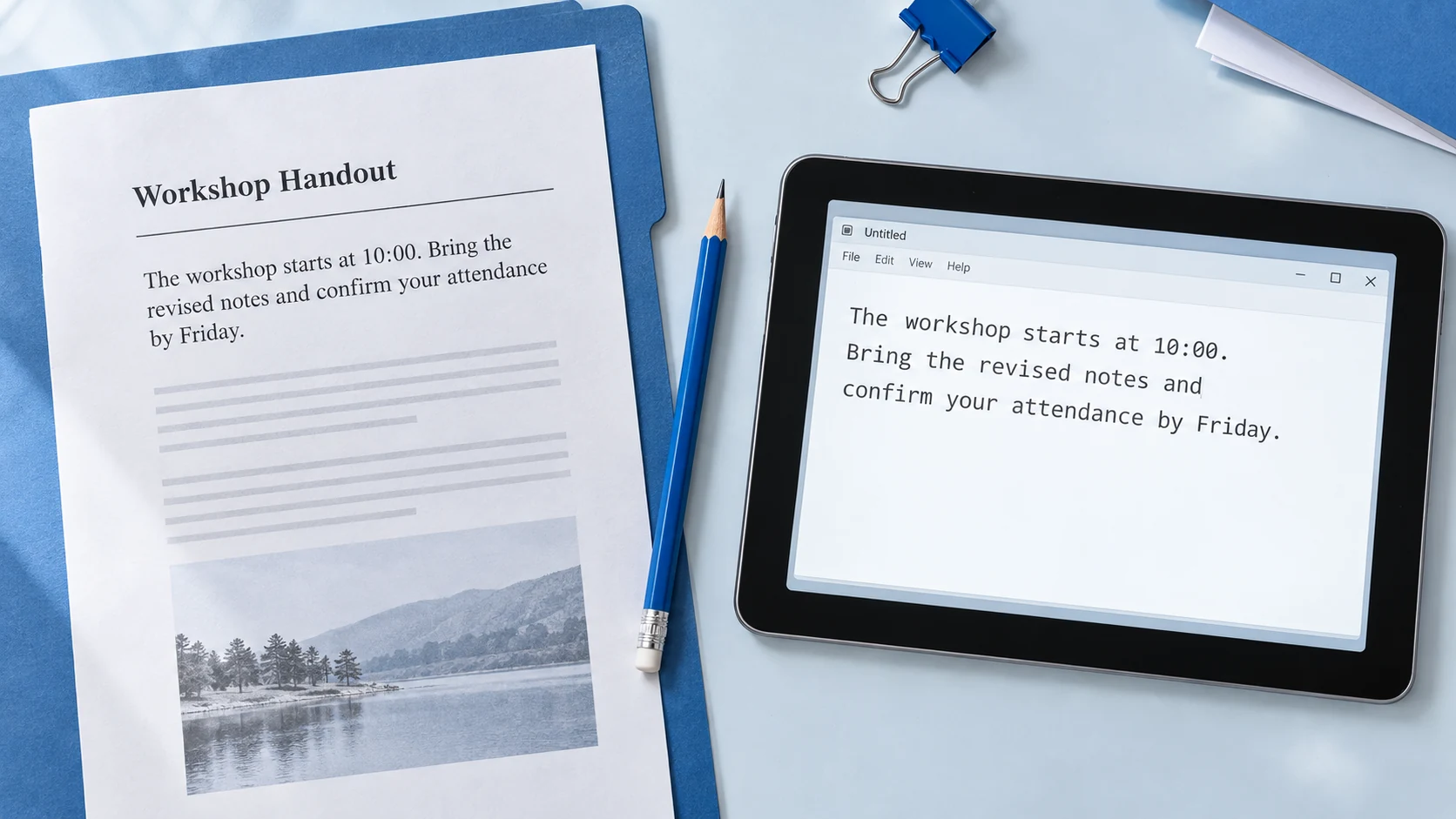
Here is an original illustrative example:
The workshop starts at 10:00.
Bring the revised notes and
confirm your attendance by Friday.
Suppose the source shows this as one paragraph. The editing copy should read:
The workshop starts at 10:00.

Bring the revised notes and confirm your attendance by Friday.
Now consider a different layout:
The workshop starts at 10:00. Bring the revised notes and confirm your attendance by Friday.
If the blank space represents two actual paragraphs, keeping that boundary may be useful. The presence of a line break alone does not tell you which version is intended.
Check the source for headings, list items, topic changes and paragraph spacing. Preserve those structural clues rather than treating every break as unwanted.
Join unwanted breaks within a confirmed paragraph
Quick Tool Desk’s Text Case Converter includes a Remove Line Breaks control. Its current implementation replaces line breaks with spaces and collapses whitespace. It does not identify meaningful paragraph boundaries.
That makes it suitable for a selected passage you have already confirmed should be continuous. It is less suitable for an entire document containing headings, bullet points and separate paragraphs.
Use this workflow:
- Choose one paragraph with unwanted breaks.
- Keep its original version available for comparison.
- Paste that paragraph into the converter.
- Apply Remove Line Breaks.
- Read the result against the PDF.
- Copy the reviewed passage into your editing note.
- Repeat only for other passages that need the same treatment.
Do not include a heading or the next paragraph in the same operation unless you deliberately want them joined.
A readable sentence can still contain missing text. Compare the first and last sentences with the source, then revisit each joined location to catch missing words or fragments that still need repair.
Repair split words without deleting every hyphen
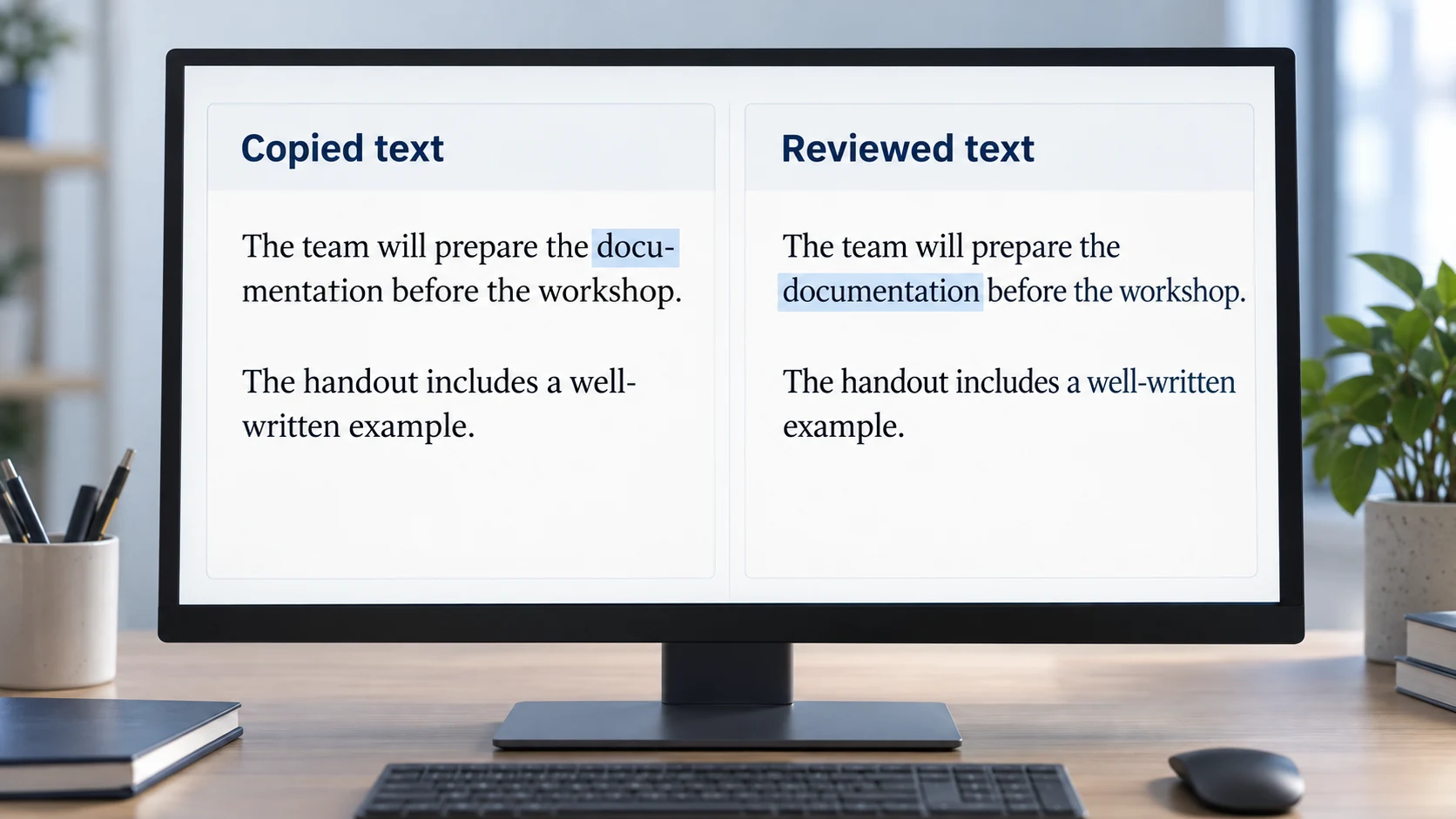
Copied text can preserve a hyphen used to divide a word across a printed line. For example:
The team will prepare the docu-
mentation before the workshop.
If the intended source word is “documentation,” repair the split manually:
The team will prepare the documentation before the workshop.
Removing the line break alone would leave docu- mentation. The line-break control does not understand that these fragments belong together.
However, a hyphen can also be meaningful:
The handout includes a well-
written example.
If the intended phrase is “well-written example,” the corrected version should keep the hyphen:
The handout includes a well-written example.
The same visual pattern therefore needs two different decisions. In one case you remove the hyphen; in the other you retain it.
Be especially careful with reference codes, web addresses, negative numbers and technical terms. A hyphen or dash may carry information. Never run a blanket deletion just because several line-end hyphens are unwanted.
Restore headings, lists and reading order
Once the paragraph wording is correct, rebuild the parts that make it readable.
A copied heading may appear at the end of the previous sentence. A numbered list may lose its item boundaries. Text copied across columns may place unrelated lines next to one another.
For a fictional workshop handout, the source might contain:
Preparation

1. Read the short briefing.
2. Bring your revised notes.
3. Prepare one question.
If the pasted version puts everything on one line, restore the heading and list items using the source as your reference.
Do not infer the order from the pasted text when it is visibly confused. Return to the PDF and copy one column or section at a time if your viewer allows it.
Tables need particular care. An amount can become detached from its label, making a sentence look plausible while changing its meaning. For important table data, check each row and column relationship manually or work from an authorised structured source.
Tidy accidental gaps without flattening the layout
Extra spaces can appear within a copied paragraph or around punctuation. Fix them after you know which lines should remain separate.
Quick Tool Desk’s Remove Extra Spaces operation processes lines individually and collapses whitespace within each line. It can help tidy prose, but it is not a document-layout restoration tool.
For example:
Please bring the revised notes.
can become:
Please bring the revised notes.
However, spacing may be intentional in code, aligned text or a plain-text table. Collapsing it can destroy useful positioning.
Check the result instead of assuming that less whitespace always means better text. Also inspect punctuation manually: a space before a comma or a missing space after a full stop may need a specific correction.
Keep any technical string unchanged until you understand its required format.
Review capitalization after repairing the wording
Copied headings may arrive in all capitals. Ordinary sentences may also contain unusual capitalization.
Use the capitalization choices for edited headings guide to decide the style appropriate for your document before converting anything.
Quick Tool Desk provides several case operations, but they do not understand proper names or every abbreviation. Sentence Case lowercases the text and then capitalises supported sentence-start patterns. Names and acronyms may need manual restoration afterward.
For example, converting an all-capital passage can turn PDF into pdf. A person’s name may also lose its capital letter when it appears inside a sentence.
You can review capitalization in copied text after cleaning the wording. Apply the operation to the smallest relevant section and inspect the result before replacing the original.
Avoid converting technical identifiers, passwords, URLs or case-sensitive code as part of a general prose cleanup.
Follow the separate repairs in one workshop example
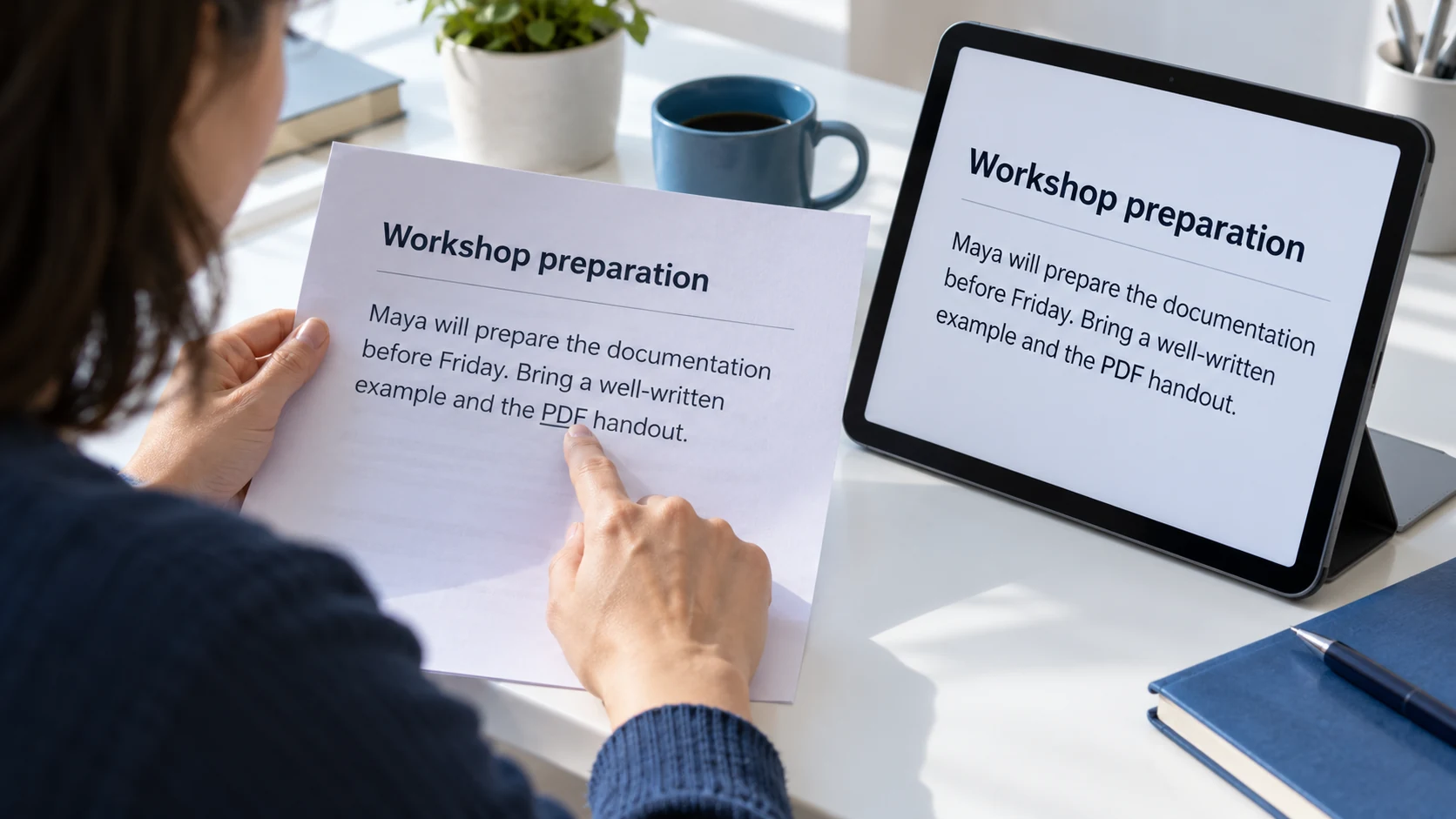
The following sample combines several problems. It is original illustrative text, not an extract from a third-party publication.
Copied version
WORKSHOP PREPARATION
MAYA will prepare the docu-
mentation before Friday.
Bring a well-
written example and the PDF
handout.

Page 2
Suppose the source confirms that “Page 2” is only a footer, the body is one paragraph, and “well-written” is a compound adjective.
Reviewed version
Workshop preparation

Maya will prepare the documentation before Friday. Bring a well-written example and the PDF handout.
The repair involves several separate choices:
- Preserve the heading as a heading.
- Join the broken paragraph lines.
- Remove the word-division hyphen in “documentation.”
- Retain the meaningful hyphen in “well-written.”
- Restore the name “Maya” and acronym “PDF.”
- Remove the footer because the source confirms its role.
No single case or spacing button performs all of these decisions. The source comparison is what makes the final passage dependable.
Verify names and numbers before measuring the cleaned draft
Read the cleaned passage against the PDF once more. Give extra attention to details that are easy to overlook:
- Names and job titles
- Dates, deadlines and times
- Decimal points, currency symbols and negative signs
- Units, reference numbers and product codes
- Quotation marks and sentence punctuation
- Footnote markers and their associated explanations
If the text came through OCR, inspect characters that could have been misrecognised. Do not guess an uncertain digit because the sentence otherwise reads smoothly.
Cleanup can also change the word count. Joining two fragments into “documentation” removes an artificial separation. Removing a footer changes what is included in the counted passage.
Our explanation of why copied text can produce different word totals helps you distinguish those changes from counting-method differences. Count the final reviewed text rather than rely on a total from the first paste.
Save the cleaned version with enough source context
Once the text is checked, keep a separate copy of the finished passage. You can organise it in Online Notepad for reviewing copied text and export it using the supported file controls.
Name the file so you can distinguish it from the unchanged extract. For example:
workshop-extract-original.txt
workshop-extract-reviewed.txt
These are suggested filenames, not automatic tool-generated names.
If the cleaned text is a quotation, retain the source information and avoid altering the wording beyond what is justified by correcting copying errors. If it is your own adaptation, make that distinction clear in your working notes.
For the export and verification steps, follow our guide to saving a clean note backup. Locate the downloaded file and reopen it before treating the export as usable.
A final cleanup sequence you can reuse
For a short passage, the complete process is:
- Confirm that copying is permitted and the text is readable.
- Keep the source PDF and an unchanged pasted copy.
- Check reading order and restore missing boundaries.
- Join only the line breaks that interrupt continuous prose.
- Repair divided words using their intended spelling.
- Tidy accidental spacing.
- Review case, names and acronyms.
- Compare facts and punctuation with the source.
- Save and reopen the reviewed copy.
If a passage remains confusing, stop applying transformations and return to the source. Copying a smaller section or obtaining an authorised editable version may be more useful than repeatedly cleaning unreliable text.
Frequently asked questions
Can Quick Tool Desk extract text directly from a PDF?
No. The workflow starts with text copied using a PDF viewer or obtained through a separate authorised extraction process. The Text Case Converter and Online Notepad are not PDF extraction or OCR tools.
Should I remove every line break from copied PDF text?
No. Headings, paragraph boundaries and list items may need their own lines. Join breaks only after checking that the selected passage should be continuous prose.
Will Remove Line Breaks repair a word divided across two lines?
Not automatically. It replaces line breaks with spaces, so a split such as “docu-” followed by “mentation” still needs manual repair. Check the intended spelling in the source.
How do I decide whether to keep a line-end hyphen?
Compare the word with the PDF and its intended spelling. A printed word division may need the hyphen removed, while a genuine compound such as “well-written” should retain it.
Can Sentence Case restore all names and acronyms?
No. Case conversion does not reliably recognise names and abbreviations. Review forms such as “Maya” and “PDF” after converting the relevant passage.
What should I do when the copied passage is out of order?
Return to the PDF and compare smaller sections, especially where columns, tables or sidebars are involved. Restore the order from the source rather than guessing from the pasted version.