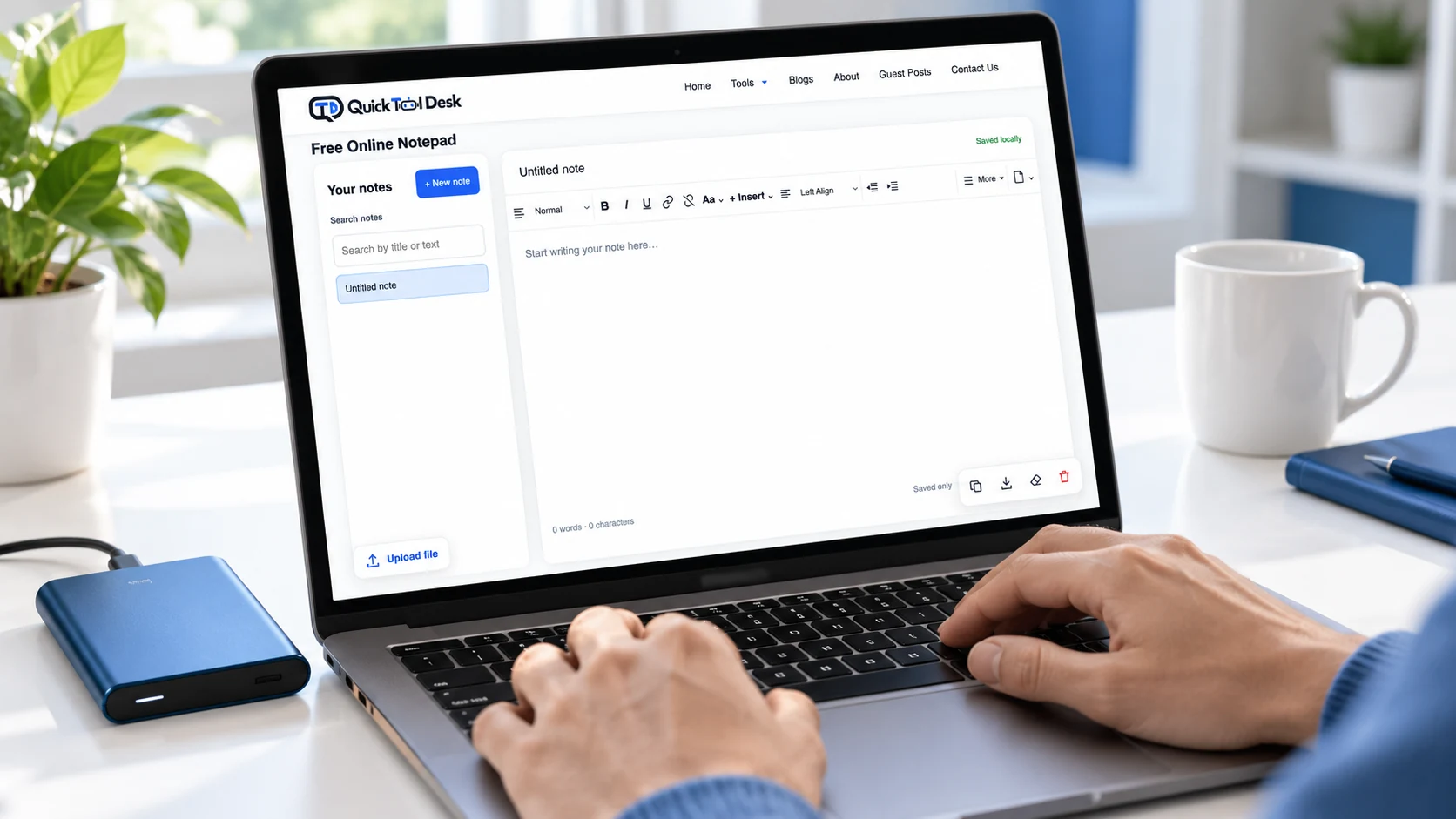
To back up online notepad notes, export the note as a TXT or HTML file, find the downloaded file, and open it to confirm that the important content is present. Then keep another copy somewhere separate from the device holding your working notes. TXT suits plain wording; HTML is more useful when you want to retain supported formatting.
The checking step matters. Clicking a download button starts a process, but it does not tell you where the file ended up or whether you selected the right note. A useful backup is a file you can locate, read and recognise later—not simply a download notification you remember seeing.
This guide uses an illustrative workshop-planning note to explain the workflow. The example is a suggested practice exercise, not a claim that a browser export test was performed. You can follow the same steps with your own meeting record, study notes, writing draft or project checklist.
Decide which parts of your note you will need later
Before downloading anything, decide whether you mainly need the words or also need the structure around them. A shopping list may only need readable lines. A project handover may benefit from headings, emphasis and clickable references. Choosing the format around the task makes the saved file easier to use.
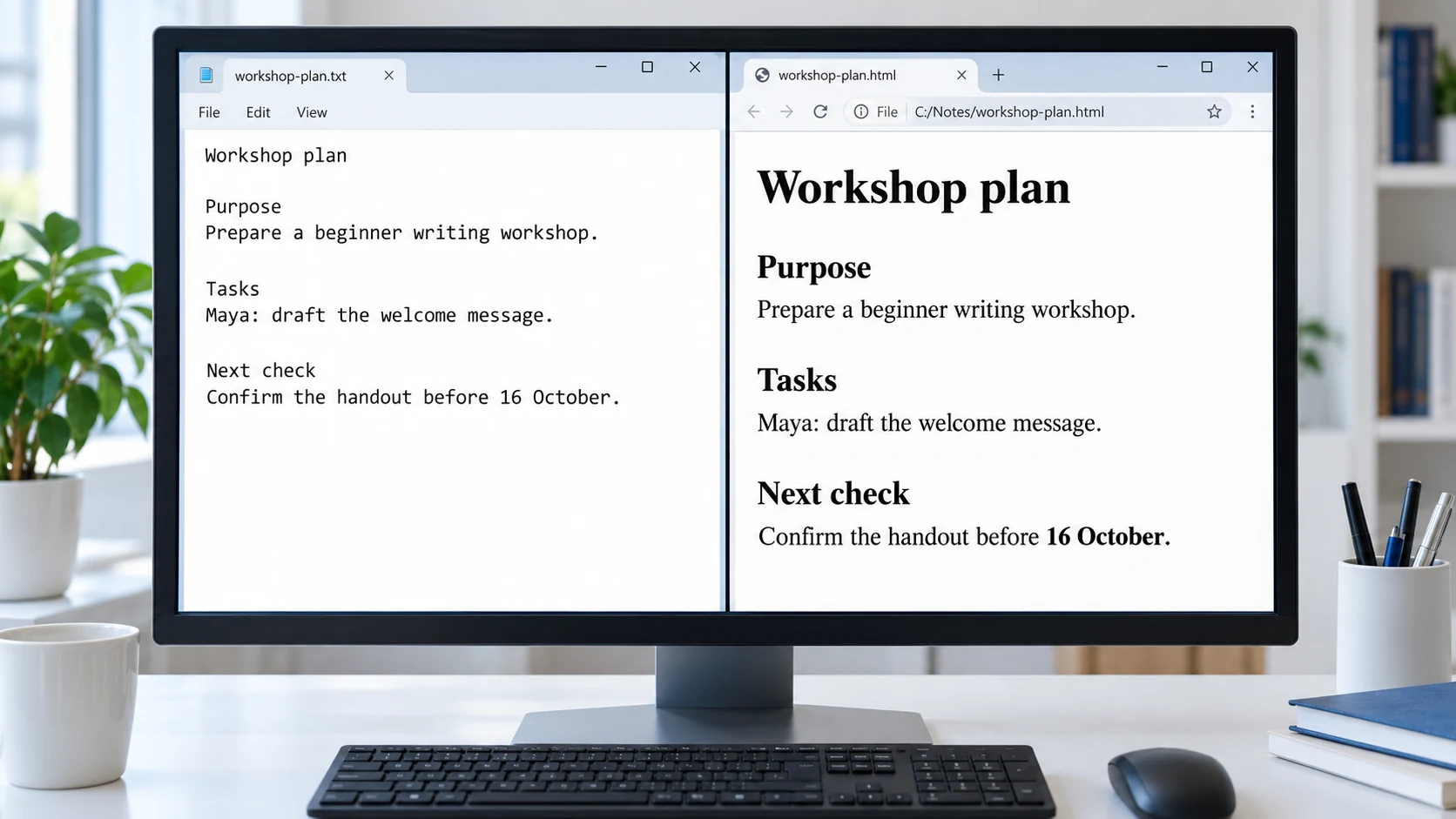
TXT is plain text. It can retain wording and line breaks, but it does not carry rich formatting such as bold text or styled headings. HTML can describe document structure, including paragraphs and links. However, an exported HTML file should not be expected to reproduce every detail of the editor interface or its appearance.
| What you need | TXT export | HTML export |
|---|---|---|
| Plain wording | Suitable for reading, searching and copying text. | Includes the wording inside an HTML document. |
| Supported formatting | Does not retain rich formatting. | Retains supported markup; appearance can differ from the editor. |
| Links in Quick Tool Desk | Linked labels and their URLs are appended in a readable Links section. | Supported links can remain clickable. |
| Note title in Quick Tool Desk | The title is used to form the filename; do not assume it also appears in the text. | The title is included as a heading in the exported document. |
| Opening the file | Use a text editor or an application that reads plain text. | Open a trusted exported file in a browser to view the document. |
| Backing up every note | Exports the selected note. | Exports the selected note. Use the separate JSON collection backup for multiple notes. |
If the note matters and you are unsure which format you will need later, save both. The TXT file gives you an accessible copy of the wording, while the HTML file gives you another way to review the document’s supported structure. These two formats serve different purposes, but keeping both on one laptop still leaves both exposed to losing that laptop.
Prepare one clear note before exporting
Open the note you intend to preserve and read its title and first few lines. This simple check prevents a common practical mistake: downloading the previous note because it was still selected. Finish any edits, check the ending, and confirm that the note is not empty.
For a practice exercise, create a note titled “Workshop plan — 14 October 2026” with the following content. The names and tasks are fictional. The deliberately different details give you several things to check after downloading.
Workshop plan — 14 October 2026

Purpose
Prepare a beginner writing workshop.

Tasks
- Maya: draft the welcome message.
- Arun: prepare three editing examples.
- Leena: review the final handout.

Next check
Confirm the handout before 16 October.

Reference
https://developer.mozilla.org/en-US/docs/Web/HTML
You can make “Purpose” and “Tasks” headings, emphasise the deadline, or add the reference as a link using the editor’s supported controls. These differences help you see what each format keeps. The goal is not to create an elaborate document; it is to make omissions noticeable.
For real meeting notes, record the decisions, responsible people and next review date before exporting. Our guide to creating a reusable meeting record explains how to organise that information so the saved file remains understandable after the meeting.
Export notes to TXT for a readable text copy
In Quick Tool Desk, TXT export downloads the selected note’s text. The current export also collects supported hyperlinks from the note and appends their labels and URLs in a Links section. This is helpful when the editor shows a short linked phrase instead of displaying the complete address.
- Open the correct note and finish your edits.
- Use the TXT download control to export the selected note.
- Check your browser’s downloads list or the folder chosen for the download.
- Open the file in a text editor.
- Compare its beginning, important details and final lines with the note.
- Check any appended Links section if your note contains hyperlinks.
Do not treat a change in styling as missing text. A bold deadline will become ordinary text in TXT. A heading will no longer have a heading style. Read through the downloaded text and make sure you can still identify each task, its owner and its deadline without relying on the original styling.
Quick Tool Desk uses the note title to form the download filename, but its TXT export does not automatically prepend that title to the note body. If the title contains important context, such as a project name or meeting date, put that information inside the note as well. A filename alone may become less useful if somebody renames the file later.
Save notes as HTML when structure matters
HTML export is useful when the note’s supported formatting helps explain the content. Quick Tool Desk creates an HTML document containing the note title as a heading and sanitised note markup. It is a document export, so do not expect the sidebar, editing toolbar or complete notepad interface to appear in the file.
- Select the same note you exported as TXT.
- Use the HTML download control.
- Locate the file ending in
.html. - Open your own trusted export in a browser.
- Check the title, sections, emphasis, lists and references that matter.
- Compare the final lines with the original note before accepting the file as your backup.
If the file opens as code in a text editor, that does not by itself mean the export failed. The application may be showing the HTML source rather than displaying the document. Choose a browser to view it. Mozilla’s HTML documentation explains how HTML describes the structure of web content.
Keep your expectations specific. Supported headings and links may remain useful, while visual details can differ. If precise page layout is essential for a formal submission, check the destination’s required file format rather than assuming this HTML export meets it.
Compare the downloaded copy with your latest edits
Opening a file is only the first check. An old export can open successfully while missing the last changes. Compare details that distinguish this version from earlier drafts. For the workshop example, look for Leena’s review task and the 16 October deadline rather than checking only the first sentence.
- Identity: Is this the right note and project?
- Completeness: Are the beginning and ending both present?
- Recent changes: Does the file contain the last task or correction you added?
- Accuracy: Are names, dates, amounts and reference addresses readable?
- Usability: Can you reopen the file with an application you expect to use later?
When something is missing, return to the original note while it is still available. Confirm your edits, export again and inspect the new file. Keep the earlier copy until the replacement has passed your checks. Avoid clearing browser data as an attempted fix for an incomplete export.
Give the verified files names you can recognise
A useful naming pattern combines a date, a topic and a version when necessary. For example, 2026-10-14-workshop-plan-v1.txt and 2026-10-14-workshop-plan-v1.html clearly belong together. These are suggested filenames you can apply after downloading, not a claim about the tool’s exact automatic filename.
Store related exports in one clearly named folder. If you revise the note tomorrow, save a new dated version instead of replacing the only verified copy immediately. This creates a simple manual record of earlier drafts. It does not add automatic version history to the browser notepad.
Avoid putting confidential details in filenames when those names may be visible in shared folders, emails or device searches. A short project reference can be enough. Also check that the extension remains correct: renaming a TXT file to end in .html does not convert plain text into a formatted HTML document.
Put another verified copy somewhere you can access separately
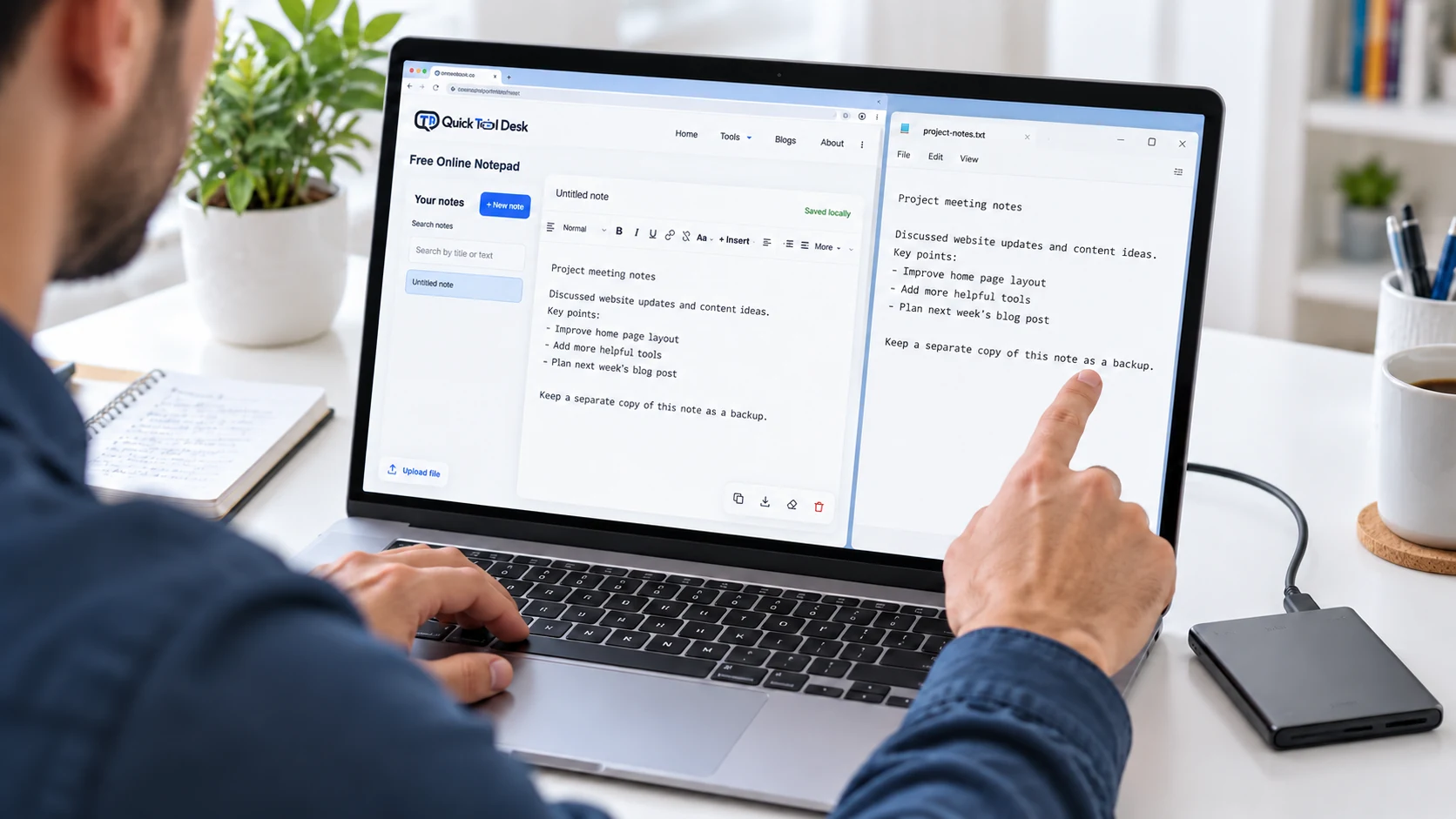
An export separates your note from the browser’s storage, but a download on the same device does not protect against every kind of loss. If the device becomes unavailable, both the browser note and the downloaded file may become unavailable together.
After verifying the export, copy it to a separate location you control, such as an external drive or an approved cloud-storage folder. If you use a synchronised folder, confirm that the file actually reached that location. Seeing the file in a local folder is not enough to establish that another copy exists elsewhere.
Follow your organisation’s rules for work notes. Do not send customer information or internal records to a personal account simply because it is convenient. TXT and HTML exports are readable documents; their file extensions do not provide password protection or guarantee encrypted storage.
For the separate issue of where the working note lives, read how browser note storage works. Browser storage can be removed under certain conditions, as Mozilla explains in its storage quotas and eviction guidance. This guide concentrates on creating a usable file copy before you need to recover one.
Save the note collection with the separate JSON export
TXT and HTML exports cover an individual selected note. If you maintain several notes, Quick Tool Desk also offers a collection backup named quick-tool-desk-notes-backup.json. It uses the tool’s qtd-notes-v1 format and includes note records, including their deleted flags.
Use this separate backup when your aim is to retain the collection for a supported import. Keep TXT or HTML copies of especially important notes if you also want documents that are convenient to read outside the tool. A collection file and a readable single-note export solve different needs.
The current importer accepts supported TXT, HTML/HTM and JSON files up to 5 MB. JSON imports are also limited to 1,000 records. Import adds records with new IDs rather than replacing the collection, so importing the same backup repeatedly can create duplicates. Do not assume every exported collection will fit the current import limits.
Check reopening and importing as separate tasks
Reopening means reading the exported file in another application. Importing means adding content back into the notepad. A file can be useful to read even when its imported appearance differs, particularly because TXT has no rich formatting and imported HTML is limited to supported sanitised markup.
For a practice check, use a small, non-sensitive sample and import it once. Inspect the newly added note and compare the details you care about. Keep the source file and original note during this exercise. Do not clear your existing notes to make room for a restoration test.
Repeat the export routine after meaningful changes: finishing a meeting record, completing a study session or preparing to move devices. The collection backup is manual, and an old download does not update itself when the browser note changes. Start with one note and download a note from Online Notepad, then verify the file before organising your remaining exports.
Frequently asked questions
Which export suits my note: a plain TXT copy or an HTML document?
Choose TXT when you mainly need readable wording. Choose HTML when supported headings, emphasis and links matter. Saving both can be useful, but keep a verified copy in a separate location as well.
Where do my note’s linked addresses appear after a TXT download?
The current TXT export appends supported linked labels and their URLs in a Links section. Open the downloaded file and check that the references you need are present.
Does downloading one note back up all my notes?
No. TXT and HTML downloads export the selected note. Use the separate Quick Tool Desk JSON collection backup when you need a backup of multiple note records.
What should I compare when I reopen the downloaded note?
Locate the downloaded file, open it and compare the beginning, ending and latest changes with the original note. Check important names, dates and references before relying on it.
What happens to the notes already in the notepad when I import a file?
The current importer adds notes with new IDs rather than replacing the collection. Repeatedly importing the same file can create duplicates. Keep the source backup and inspect the imported notes.
Will an exported file update when I edit the browser note?
No. A downloaded file is a copy from the time of export. Download a new version after important edits and check it before replacing an older verified backup.