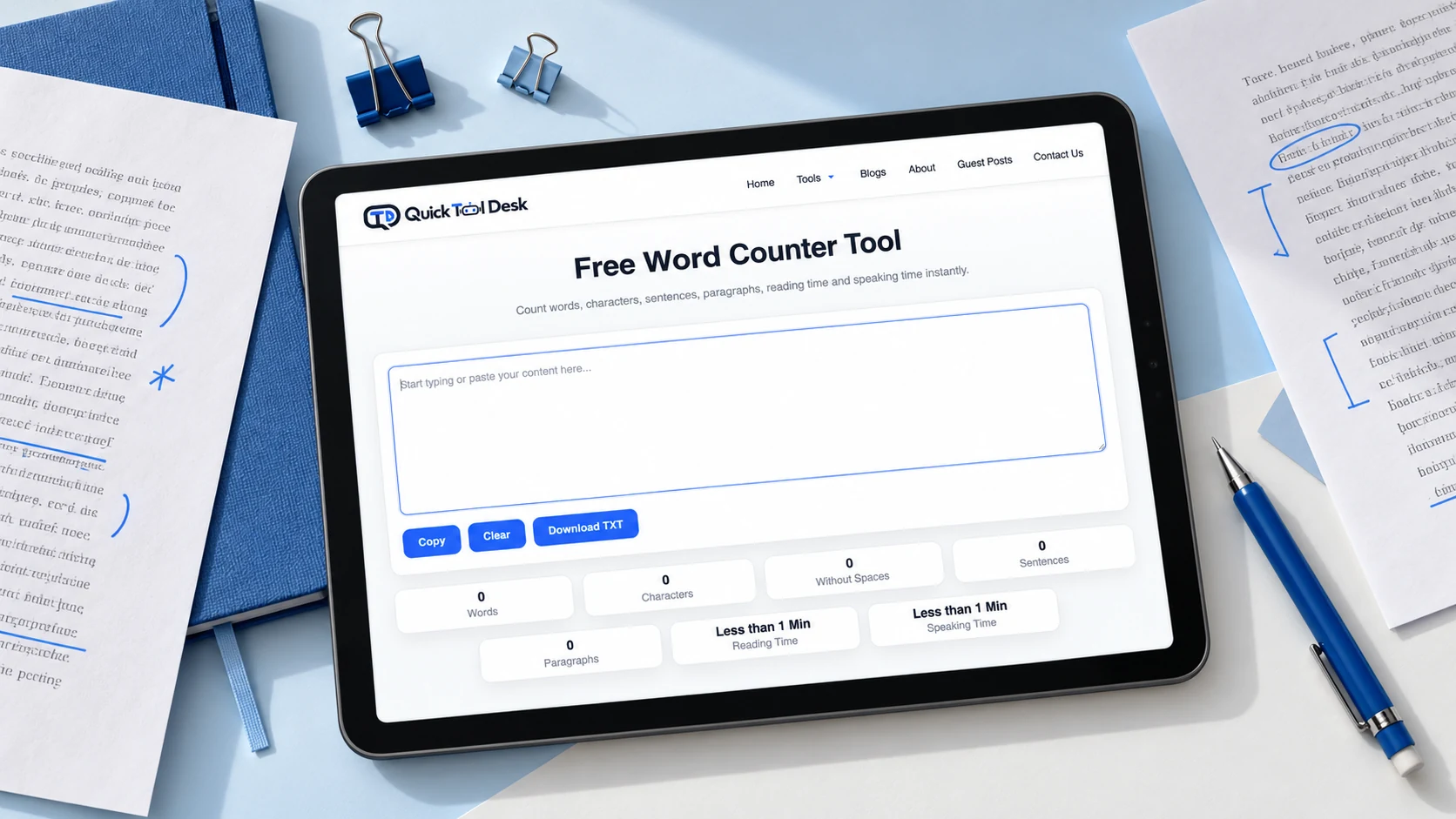
A word total tells you how many separate text items a counter recognises as words. Character count measures its length using smaller units, including letters, numbers and punctuation—and, depending on the counter, spaces and other whitespace. If an instruction gives a word limit, check words. If it gives a character limit, confirm whether spaces are included before choosing the number to follow.
These limits are not interchangeable. A short sentence made from long words can have fewer words but more characters than a longer sentence made from short words. That matters when you are writing an application response, completing a form or preparing a brief description.
The safest workflow is to read the requirement, count the exact text you intend to submit, and check it again in the destination. An external counter helps you prepare, but the receiving system determines whether your entry meets its rules.
Read the unit before editing your draft
Imagine two fictional submission instructions:
- Workshop introduction: Maximum 80 words.
- Registration form description: Maximum 80 characters, including spaces.
The number is the same, but the available room is very different. An 80-word introduction can contain several sentences. An 80-character field may only accommodate one short sentence.
Before shortening your draft, identify three things: the unit being counted, the maximum or minimum allowed, and the part of the submission covered by the rule. A title field may have its own limit even when the main response has a separate allowance.
Also distinguish a maximum from a target. “No more than 150 words” sets a ceiling. “Around 150 words” allows some interpretation unless further guidance narrows it. A requirement such as “between 100 and 150 words” gives both a lower and an upper boundary.
If the instructions are unclear, check the form’s help text or ask the person receiving the submission. Guessing that “length” means words can lead you to edit the wrong number.
What the two counts tell you about the same sentence
Consider this passage:
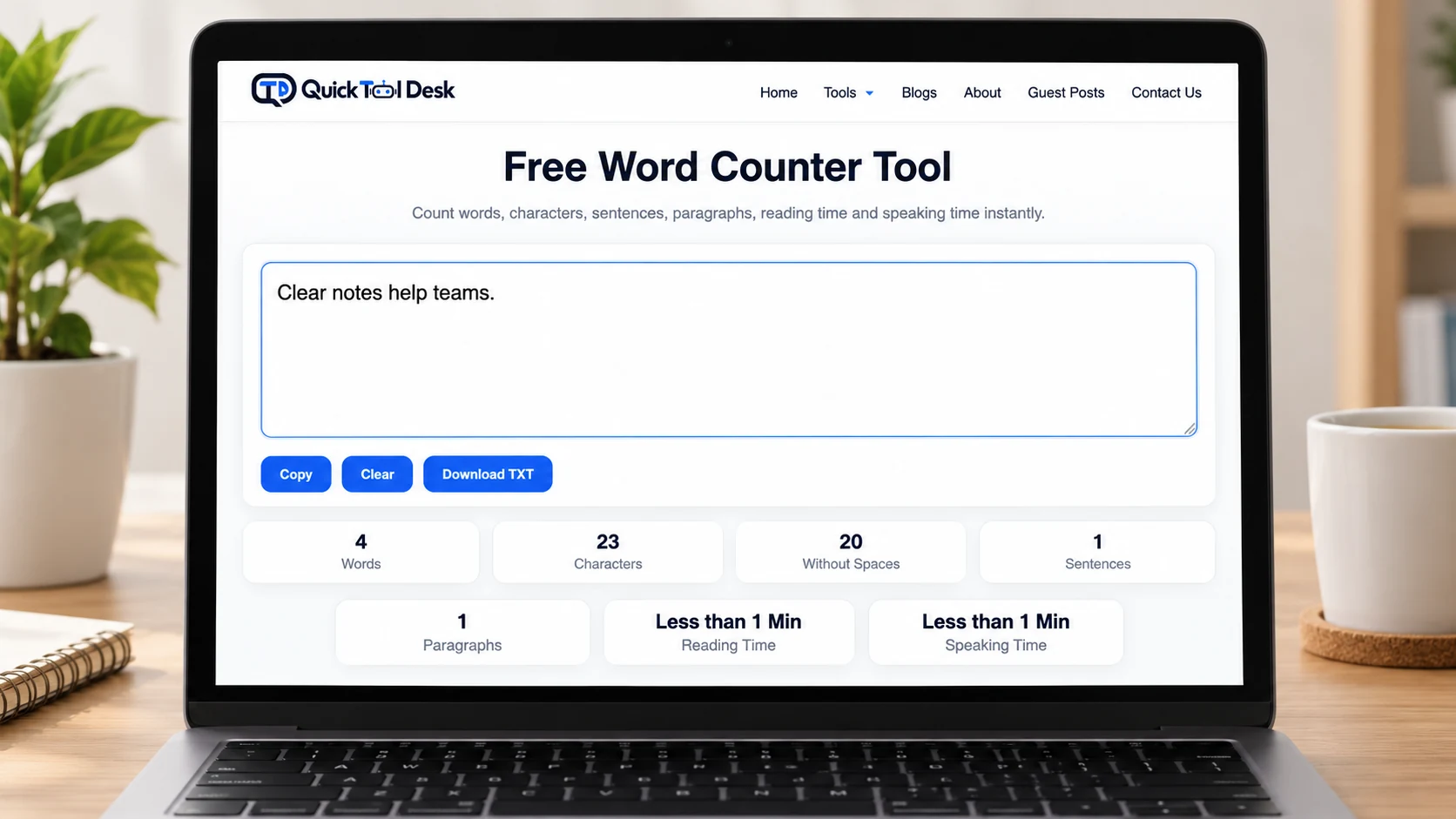
Clear notes help teams.
Using Quick Tool Desk’s current counting rules, it contains:
- 4 words
- 23 characters
- 20 characters without whitespace
There are 19 letters, three spaces and one full stop. The total character count includes all of them. Removing the three spaces leaves 20, because punctuation still contributes to the count.
The word total answers, “How many whitespace-separated items are in this passage?” The character total answers a different question about the length of the underlying text.
These example numbers were calculated from the current tool’s counting rules. They are not a Google Docs or Microsoft Word comparison test.
You can use the word and character counter to inspect your own passage. Keep the submitted text separate from any instructions or commentary that should not be counted.
Short words and long words use different amounts of room
Word count does not predict an exact character count. Compare these two short instructions:
| Text | Words | Characters including spaces | Characters without whitespace |
|---|---|---|---|
| Start now. | 2 | 10 | 9 |
| Begin immediately. | 2 | 18 | 17 |
Both contain two words, but the second uses eight more characters. Replacing a phrase with the same number of longer words will not help when you need to fit a character limit.
This is why a fixed rule such as “100 words always equals 600 characters” is unreliable. Word lengths, punctuation and spacing change from one passage to another. An estimate may help with early planning, but it cannot confirm compliance with a strict submission limit.
When you need to fit a field, count the actual draft instead of converting a word allowance into a guessed character allowance.
Characters with and without spaces: check what is being excluded
A counter labelled “characters without spaces” may remove only ordinary spaces, or it may remove a wider set of whitespace. Those approaches can produce different results when the text contains tabs, line breaks or other spacing characters.
Quick Tool Desk’s current calculation removes JavaScript whitespace matches for its count without spaces. This includes ordinary spaces, tabs and line breaks. Its total character count includes those characters.
The following examples describe the spacing explicitly so that one space and two spaces cannot be confused when reading the table.
| Input structure | Words | Total characters | Characters without whitespace |
|---|---|---|---|
| Letter A + one space + letter B | 2 | 3 | 2 |
| Letter A + two consecutive spaces + letter B | 2 | 4 | 2 |
| Letter A + one line-feed character + letter B | 2 | 3 | 2 |
The plus signs in the table describe how the input is assembled; they are not part of the counted text. Each input contains the letters A and B with only the stated whitespace between them.
Adding an extra space changes the total character count without changing the word total in these examples. Moving a word onto another line also introduces a character into the underlying text.
The line-break example specifically uses one line-feed character. Text copied from different sources can contain different line-ending sequences, so do not assume every visible line break contributes the same amount in every system.
For ordinary prose, remove accidental spacing where appropriate. Keep meaningful paragraph breaks if the destination supports them. Compressing everything into one block can make a response harder to read.
Pick the count that matches your submission
Use the requirement to choose which result you monitor.
| Requirement | Count to check | Additional question |
|---|---|---|
| Maximum 200 words | Word count | Does the allowance include the title or references? |
| Maximum 500 characters, including spaces | Total character count | Does the destination use the same character rules? |
| Maximum 500 characters, excluding spaces | Relevant count without spaces | Are tabs and line breaks excluded too? |
| Maximum file size | File size in the required unit | Which encoding and file format are required? |
| No more than one page | Final document layout | Are font, margins and spacing specified? |
A file-size limit is especially easy to confuse with a character limit. Characters describe text length; bytes describe encoded data size. The relationship depends on the text and encoding. A character total alone does not establish that a file will fit an upload limit.
A page limit is different again. It depends on the finished document’s layout, including headings, margins and line spacing. If you are planning a longer draft, our guide to planning article and script length can help you organise the writing before the final submission check.
A worked example: reduce a response without losing its purpose
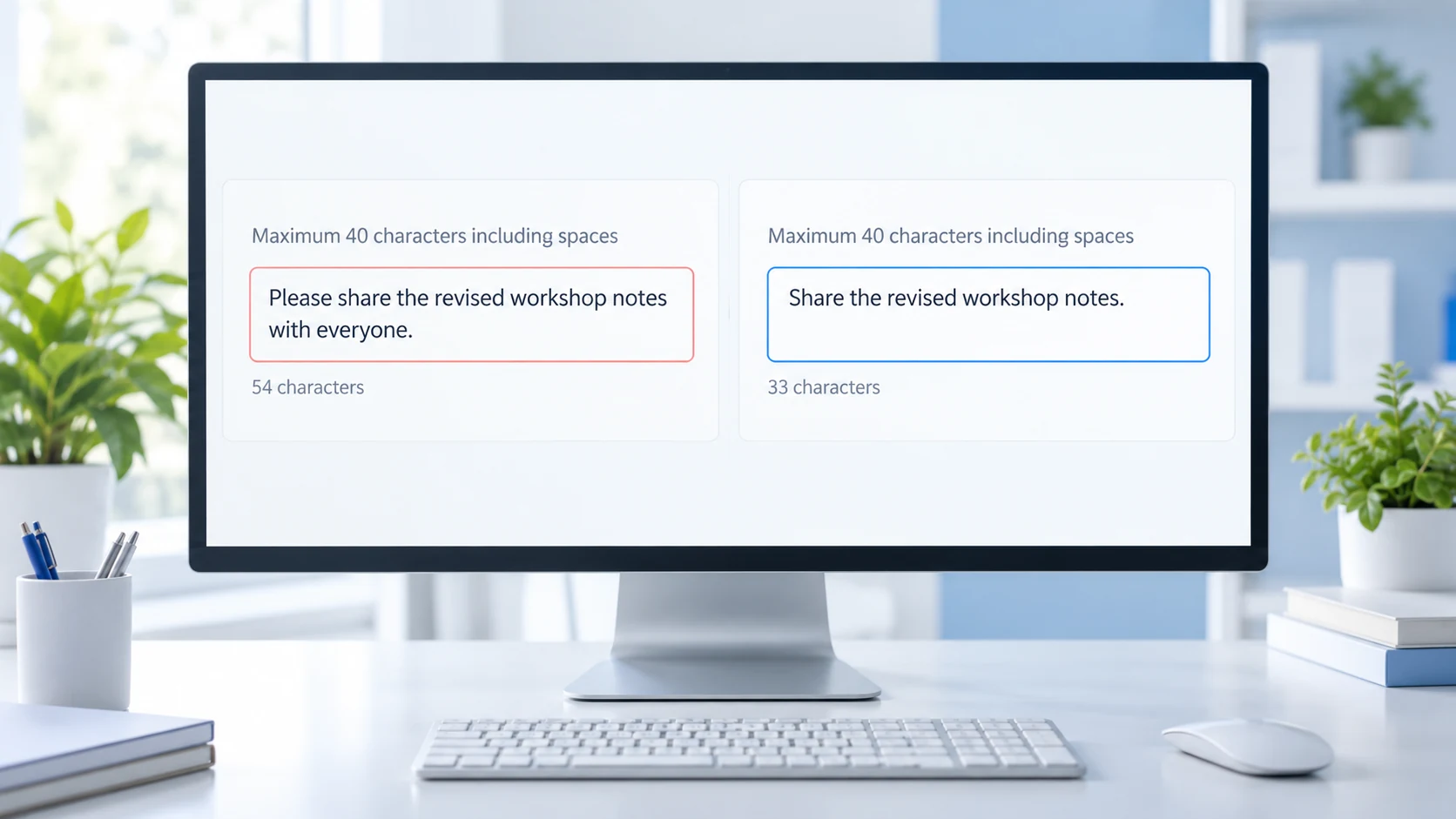
Suppose a fictional form allows 40 characters including spaces. Your draft says:
Please share the revised workshop notes with everyone.
Under the current Quick Tool Desk rules, that is eight words and 54 characters. It exceeds the example field allowance by 14 characters.
A shorter version is:
Share the revised workshop notes.
This contains five words and 33 characters, leaving seven characters below the fictional limit.
The edit removes the politeness word “Please” and the audience phrase “with everyone.” Whether that is acceptable depends on the surrounding context. If the form already identifies the audience, the shorter response may preserve the task. If it does not, you may have removed useful information.
That decision matters more than simply obtaining a smaller number. Shortening should retain the action, object and any essential qualification. A response that fits but leaves the reader uncertain has not solved the writing problem.
For another example:
Please send the final notes today.
This contains six words and 34 characters. Changing it to:
Send final notes today.
produces four words and 23 characters. The deadline remains, while unnecessary wording is reduced.
All limits in this section are illustrative. They are not published requirements for a particular platform.
Shorten the wording before changing the formatting
When a draft exceeds its limit, start with the content. Removing spaces between words may reduce a character total, but it damages readability and can change how a word counter interprets the passage.
Try the following editing sequence:
- Remove a repeated explanation.
- Replace an unnecessarily long phrase with a clear shorter one.
- Delete context already supplied by the form or heading.
- Keep dates, amounts, names and conditions that affect the meaning.
- Check the count again after each meaningful edit.
- Read the shortened version as a complete response.
For example, “at this point in time” can often become “now,” provided the sentence still means what you intend. However, replacing a specific deadline with “soon” may make the response shorter while making it less useful.
Avoid deleting punctuation automatically. A full stop or comma takes space, but it can help readers understand the sentence. The goal is concise communication within the allowance, not the smallest possible character total.
The symbol you see may contain several counting units
For ordinary English letters, a character counter often behaves as you expect: one visible letter contributes one unit. Emoji and combined characters introduce a complication.
Quick Tool Desk’s current total uses JavaScript string length, which counts UTF-16 code units. These are technical units used to represent text. They do not always correspond one-to-one with the symbols you see on the screen.
For example, the single visible emoji 😊 occupies two UTF-16 code units. A visible accented letter can also be represented in different ways: é may be stored as one code unit, while an e followed by a combining accent uses two.
You do not need to learn Unicode to use a form. The practical lesson is that a visible symbol is not guaranteed to count as one everywhere. Mozilla’s explanation of JavaScript string length describes this distinction.
Some systems count code units, some count Unicode code points, and others count user-perceived character groups. Do not assume the counter on a social platform, application portal or messaging service follows the same method as an external tool.
Paste your finished response where it will be submitted
After editing, paste the response into the actual field before treating it as finished. Look for a counter, a validation message or guidance beside the input.
Standard HTML fields can use a maxlength setting measured in UTF-16 code units, as described in Mozilla’s maxlength documentation. Websites can also implement their own rules, so this does not mean every form behaves identically.
Check that the complete ending survived the paste. A receiving field may restrict input, and custom behaviour can vary. Do not judge completeness only from the opening sentence.
If the destination disagrees with your external count, follow its documented submission rule and inspect the pasted text. Check for extra spaces, line breaks, emoji or other characters that could explain the difference.
For a broader discussion of counting scope and punctuation, see why word counts differ between writing tools. That guide addresses differences between tools; this workflow helps you select and satisfy the right kind of limit.
Make the final check on the exact version you will send
A count from an earlier draft stops being useful once you change the wording. Even adding a name, a date or a short sign-off can push a response beyond its allowance.
Before submitting:
- Copy only the text covered by the requirement.
- Check the appropriate word or character total.
- Include the title only when the instructions require it.
- Inspect the version pasted into the destination.
- Confirm that essential details and the final sentence are intact.
- Keep a separate copy of the completed response if you may need it later.
Do not claim a submission meets the limit merely because an unrelated counter shows a smaller number. The reliable check combines the written requirement, the exact final text and the destination’s validation.
Frequently asked questions
Does keeping the same number of words keep a response equally short?
No. In the calculated examples, “Start now.” uses 10 characters, while “Begin immediately.” uses 18. Each has two whitespace-separated words, but the longer wording needs eight additional characters.
Are punctuation marks included when the tool counts characters?
They contribute to Quick Tool Desk’s character totals. A count without spaces still includes punctuation. For a submission, check whether the receiving system documents any different treatment.
Which total should I use when the instructions only say “characters”?
Check the field’s help text or ask the recipient whether spaces are included. If a built-in counter is available, use it to inspect the final entry rather than assuming an external count is authoritative.
What happens to tabs and paragraph breaks in the count without spaces?
Its current calculation removes whitespace, including ordinary spaces, tabs and line breaks. The total character count includes those characters. A destination may apply a different rule.
What makes an emoji occupy multiple units in this counter?
The current tool counts UTF-16 code units. Some visible symbols use multiple code units, so one displayed emoji may contribute more than one to the total. Other systems may measure text differently.
Can word count tell me whether a file meets an upload-size limit?
No. Word count measures text items, while file size measures encoded data in bytes. Check the actual file size and the destination’s upload requirements separately.