
Word counts can differ because two apps may include different parts of a document or divide text into words differently. Before changing your draft, compare the same text, check the counting settings, and follow the rules of the publisher, assignment or submission form that sets your limit.
A mismatch does not automatically mean that one app is broken. A document editor may count selected text instead of the entire file. A browser tool can count only what you paste into it. Punctuation, hyphenated expressions and copied formatting can introduce another difference even when the visible wording looks similar.
This guide explains how to investigate a mismatch, shows reproducible examples using Quick Tool Desk’s published counting rules, and provides a checklist for a final submission. It does not claim that every version of Google Docs or Microsoft Word handles every unusual character identically.
Start with an Identical Passage in Every Counter
The easiest mistake is comparing different scopes. One number may include a title, section headings and references, while the other covers only the main paragraphs. If you copy the body into an online counter but leave the bibliography behind, the totals are measuring different material.
Start by deciding which content belongs in the comparison. A useful test is to select a short paragraph, copy that exact selection, and compare it separately. Do not begin with a complex file containing tables, footnotes and several text boxes: those features make it harder to isolate the difference.
Imagine a submission with a heading, a paragraph and an image caption. If the brief includes all three, count all three in every tool. If the brief excludes captions, remove them consistently. A counter cannot infer the editorial rules of your assignment from the text alone.
The Google Docs word-count documentation explains that a whole-document count excludes headers, footers and footnotes unless you select a section. That is a scope rule, not an instruction to ignore those sections when your publisher requires them.
Check Document Features and App Settings
An editor’s document count and an online text-box count are not equivalent views of a file. The editor understands document structures; the text box receives the characters you pasted.
Microsoft’s word-count guidance explains how to inspect counts and selected passages. Check the guidance and available counting settings for the version you use. Do not infer a particular treatment of every document element from the name of the app alone.
When comparing a long document, inspect these areas individually:
- Title and section headings.
- Captions and table text.
- Text boxes or other separately positioned content.
- Headers, footers, footnotes and endnotes.
- References and appendices.
- The selected passage, if a selection remains active.
Record what is included before interpreting the numbers. Changing software without checking scope can leave the original problem unresolved.
How Spaces and Symbols Shape the Total
People recognise words from meaning and context. Software needs an explicit rule. One implementation might divide text around whitespace. Another might recognise letter sequences, language-specific boundaries or particular punctuation patterns.
These rules are often called tokenisation. In this context, a token is an item the counting rule identifies. It need not correspond perfectly to a grammatical word. A standalone dash can become an item under a whitespace rule even though a person would describe it as punctuation.
There is no useful universal claim that all online counters treat every hyphen, slash, emoji or number in the same way. Examine the particular implementation or its documented behaviour. If it offers an originality or readability feature, check that separately: a word total alone cannot measure writing quality.
The practical consequence is simple. A number becomes meaningful when you know both the text being counted and the rule used to produce it.
Worked Examples Using Quick Tool Desk
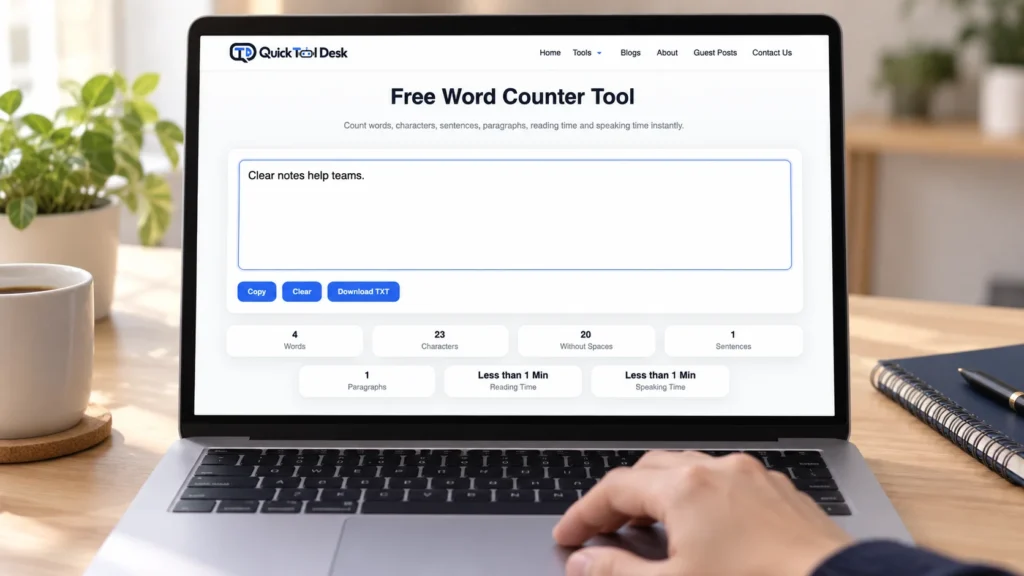
Quick Tool Desk’s word counter for checking the same passage uses a whitespace-based main word count. Items separated by spaces, tabs or line breaks count separately. These examples demonstrate that documented rule; they are not measured Google Docs-versus-Word benchmark results.
Paste each example without quotation marks. Preserve the spaces and punctuation exactly.
| Input | Main word count | What explains it |
|---|---|---|
Clear notes help teams. | 4 | Four items separated by spaces. |
well-written notes | 2 | The unspaced hyphenated expression remains one item. |
well written notes | 3 | A space replaces the hyphen, creating another item. |
draft/review checklist | 2 | The slash does not introduce whitespace. |
draft / review checklist | 4 | The standalone slash is a separate item. |
Review — then submit. | 4 | The standalone dash contributes an item. |
Review—then submit. | 2 | The attached dash does not introduce whitespace. |
2026 planning notes | 3 | The number is one space-separated item. |
These are counting demonstrations, not recommendations to change punctuation to obtain a lower total. For example, joining words around a dash might reduce this counter’s output while making a sentence harder to read or violating a style guide.
Use correct language first. Then apply the submission’s counting method to the properly edited text.
A Short Sample You Can Count Manually
Try this fictional sentence:
A well-written brief helps teams — especially before submission.
Under the main whitespace rule, it contains nine items:
- A
- well-written
- brief
- helps
- teams
- —
- especially
- before
- submission.
The example is useful because it isolates two possible boundary decisions: the attached hyphen and the standalone dash. If another app reports a different number for the same sentence, test those elements individually before assuming the entire document is unreliable.
The Main Count and Frequency Table Can Disagree Within One Tool
A total word count and a frequency table may use different rules. Quick Tool Desk documents this distinction on its tool page.
The main count separates items using whitespace. Frequency analysis groups lowercase English letters, numbers and apostrophes. A hyphenated item can therefore appear as separate terms in the analysis even when the main count treats it as one item. Non-Latin text is not fully analysed by those frequency tables.
For instance, well-written notes produces two items in the main count. The frequency analysis can identify well, written and notes separately. Adding the rows of a frequency table is therefore not a reliable way to reconstruct the headline count.
Likewise, removing stop words from keyword analysis changes that analysis’s denominator. It does not redefine which material an editor includes in your assignment. Use frequency information to investigate repeated wording, not to decide whether a submission is within its word limit.
Copying Text Can Change the Comparison
Copying from a PDF, web page or formatted file can introduce line breaks, repeated headings, page numbers or unusual whitespace. A visible line wrap is different from an actual line-break character stored in the copied text.
In Quick Tool Desk’s main count, multiple spaces between the same words do not add more items. A line break between words acts as another separator. However, a copied break inserted inside an expression can change its boundaries.
Suppose the original contains well-written notes, but extraction produces well- on one line and written notes on the next. The text box now receives three separated items. That is a change in the input, not evidence that the tool counted the unchanged original incorrectly.
Review the pasted passage before comparing it. Join a broken expression only when the original document confirms the intended wording. Preserve genuine paragraph breaks and do not silently discard citations or numbered items that belong in the submission.
Investigate a Mismatch in Five Steps
1. Keep an Untouched Copy
Save the original document before experimenting. Work with a duplicate or a copied passage so you can compare your cleaned text with the source. A lower count is not useful if the process accidentally deletes a necessary sentence.
2. Fix the Counting Scope
Write a short note identifying what is included: body, headings, captions, references, or selected text. Apply that choice consistently. If the instructions are unclear, ask the person setting the limit rather than choosing whichever interpretation produces the smallest number.
3. Compare Small Passages
Check a plain paragraph first. If its counts agree, move to the sections containing tables, references or unusual punctuation. Smaller samples make a discrepancy easier to explain and prevent unnecessary edits across the whole draft.
4. Examine Boundaries and Formatting
Look for unspaced hyphens, standalone symbols, slashes, copied line breaks and mixed-language text. Test one feature at a time. Keep a record of the exact input and the result so you can reproduce the difference later.
5. Recheck in the Required Submission Environment
After editing, use the destination’s required method for the final decision. An application form may count what you enter, while an editor may specify a particular document format or counting convention. Keep your planning counter consistent, but verify the finished submission where it will be assessed.
Which Word Count Should You Follow Near a Limit?
Follow the published instructions and the counting method used by the recipient. An online counter is helpful during drafting, but it cannot override a journal’s rules, an assignment brief or a submission form’s validation.
For a fictional 500-word application, do not assume a draft showing exactly 500 in one app must be accepted by another. Review the destination’s displayed count and any stated exclusions. If practical, leave a small editing margin instead of relying on one disputed punctuation boundary.
Do not remove required references, join unrelated words or distort punctuation just to change the number. If a necessary explanation exceeds the permitted length, revise the content or clarify the requirement. For help planning sections before drafting, see how to budget words for an article or timed script.
What This Comparison Cannot Establish
A matching count does not prove that a draft is accurate, original, clearly written or suitable for submission. It only indicates agreement for the text and settings you checked.
Quick Tool Desk’s word counter does not provide a plagiarism report, and its repetition statistics are not an originality score. It also does not establish a universal counting rule for every language. For text that needs language-specific segmentation, follow the relevant instructions and review the output carefully.
If you report an unexpected result, provide a short non-sensitive sample, the tool or app version, and what you expected. That gives the site team a reproducible problem without exposing a private essay, confidential document or personal application.
Frequently Asked Questions
Why is my Google Docs word count different from an online counter?
First compare the same selected passage. A whole-document count and pasted body text may include different material. If scope matches, investigate punctuation, copied formatting and the counting rules of the particular online tool.
Does a hyphenated expression count as one word?
In Quick Tool Desk’s main whitespace-based count, an expression such as well-written is one item when it contains no spaces. Do not assume that rule applies to every app or publication; follow the method specified for your submission.
Does Google Docs include footnotes in its whole-document word count?
Google’s documentation states that the normal whole-document count excludes headers, footers and footnotes. An assignment can still require those sections to be included, so check the brief and measure the required material separately when necessary.
Is Microsoft Word always the correct counter?
Use the software and settings required by the recipient. Check whether you are using the desktop or web version, whether text is selected, and which document elements are included. A different total is a reason to inspect scope before declaring another counter wrong.
Does the displayed total reveal whether writing is original?
No. Word count and repetition analysis do not compare your draft with published sources. Originality requires separate editorial review and, where appropriate, a suitable similarity checker whose matches are interpreted in context.
How can I resolve a counting mismatch before sending my draft?
Confirm the included sections, check the exact final text, inspect unusual punctuation and copied breaks, and verify the count using the destination’s required method. Keep an unchanged copy so you can explain any remaining difference.
Quick Tool Desk is not affiliated with or endorsed by Google or Microsoft. Product names are used for identification and explanation.